Why move your Strava data to Apple Health?
Strava stores your activity data on its servers, accessible only through the Strava app or website. Apple Health is the central workout database on your iPhone - it stores GPS routes, distance, pace, heart rate, and elevation locally on your device, in a format other iOS apps can read.
Once your Strava data is in Apple Health, several things become possible:
- Visualization apps like MoveMap can draw every route on a single lifetime map
- Apple Fitness shows your Strava workouts alongside Apple Watch data
- You can stop paying for Strava Premium and still see all your routes
- If Strava ever changes its pricing, terms, or shuts down a feature, your data stays on your phone
- You can switch to a different tracking app (Apple Workout, Wahoo, Garmin) without losing history
The move is one-way and one-time. After it's done, you keep using whatever tracking app you prefer; you just have your archive freed from a single vendor.
Method 1: Enable Strava's Apple Health sync (for new activities)
This is the easy part. Strava has a built-in toggle that writes new activities to Apple Health automatically. It does not retroactively sync your historical activities - only those recorded after the toggle is on - but it solves the going-forward problem in two minutes.
Open Strava on your iPhone
Tap your profile photo in the bottom-right corner. Tap the gear icon in the top-right to open Settings.
Open Applications, Services, and Devices
This option lives in the Settings menu under "Linked Accounts" or "Applications" depending on your Strava version. Tap into it.
Enable workout sharing
Tap "Allow workout sharing". iOS will prompt you to grant Strava write permission to Apple Health - tap "Turn All On" and then "Allow". When the connection is complete, Strava shows "Connected" beside workout sharing.
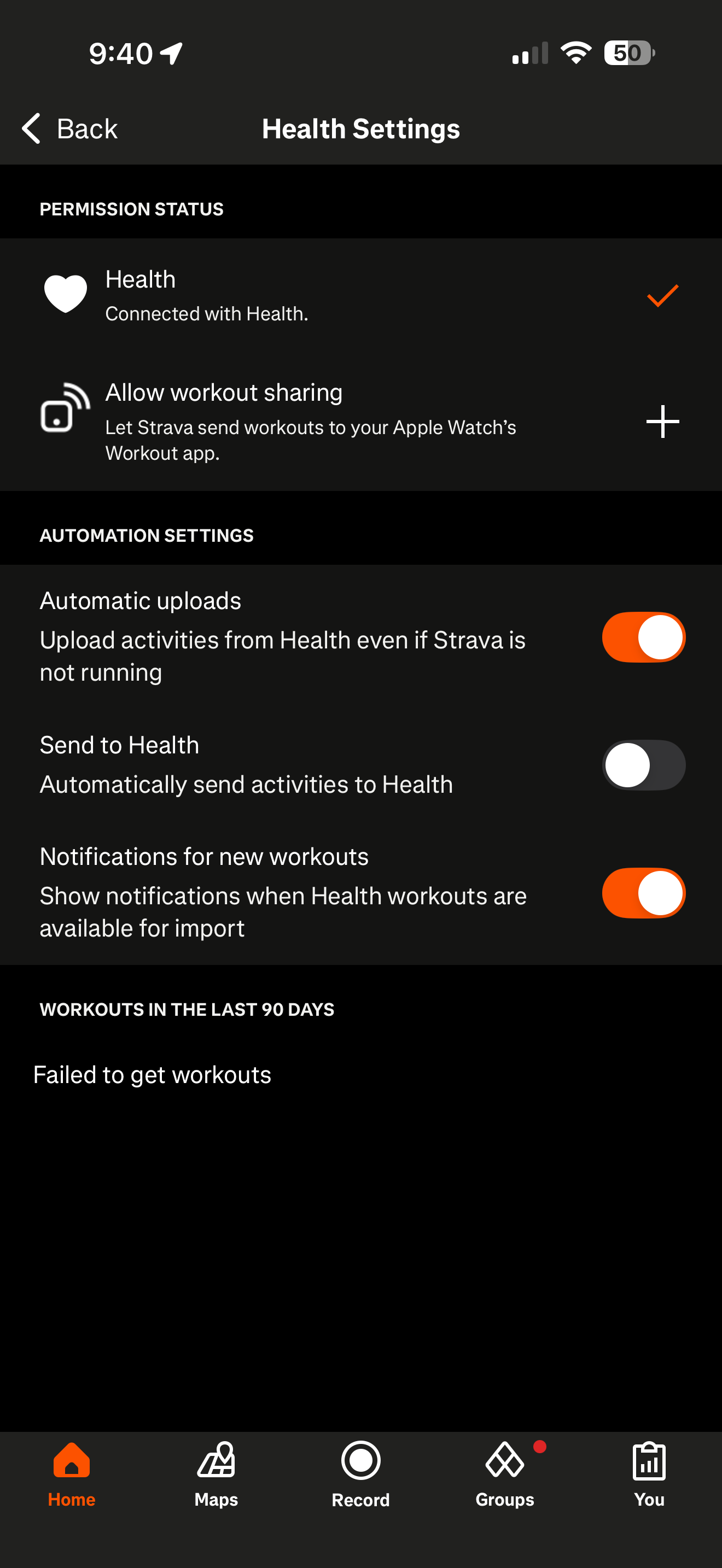
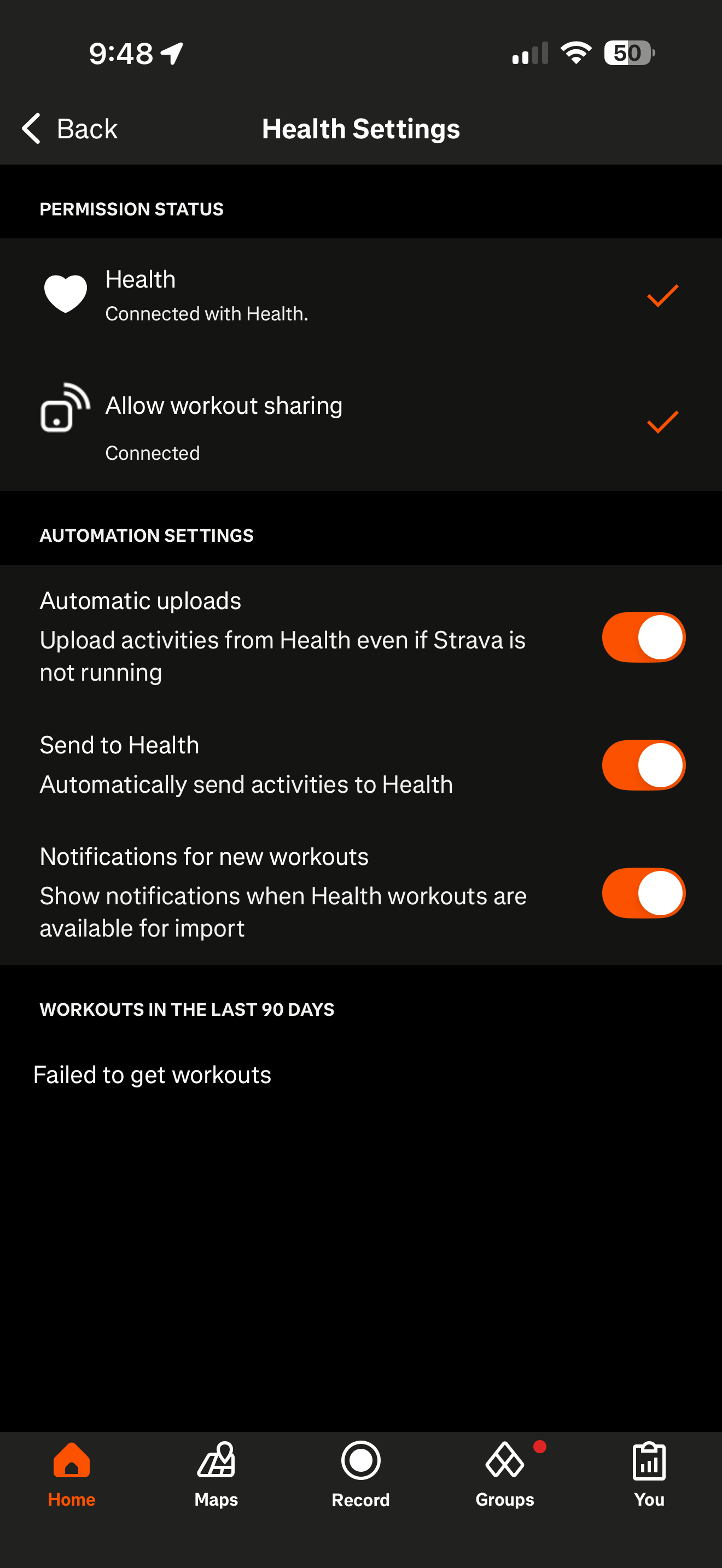
Important: This only syncs activities recorded after you enable the toggle. Your historical Strava activities will not retroactively appear in Apple Health. For those, use Method 2 below.
From this point forward, every Strava activity you record will be written to Apple Health within a few minutes of saving the workout. You can verify it worked by opening Apple Health, tapping Browse > Activity > Workouts, and seeing the activity appear with its GPS route preserved.

Method 2: Export your full Strava archive (for historical activities)
This is the slower path but the only way to bring activities you recorded before enabling Apple Health sync. Strava is legally required to provide your data on request (GDPR, CCPA, similar regulations) - the export is free, comprehensive, and includes every GPS-tracked activity you have ever recorded.
What you'll need:
- A desktop or laptop computer with a browser (Strava's archive request is desktop-only)
- A Strava account with activities you want to export
- A third-party GPX importer app on your iPhone - HealthFit ($2.99 one-time) is the most reliable as of May 2026. RunGap and Health Auto Export are alternatives.
- About 30 minutes total, mostly waiting for Strava's email and the import process
Export a single activity as GPX
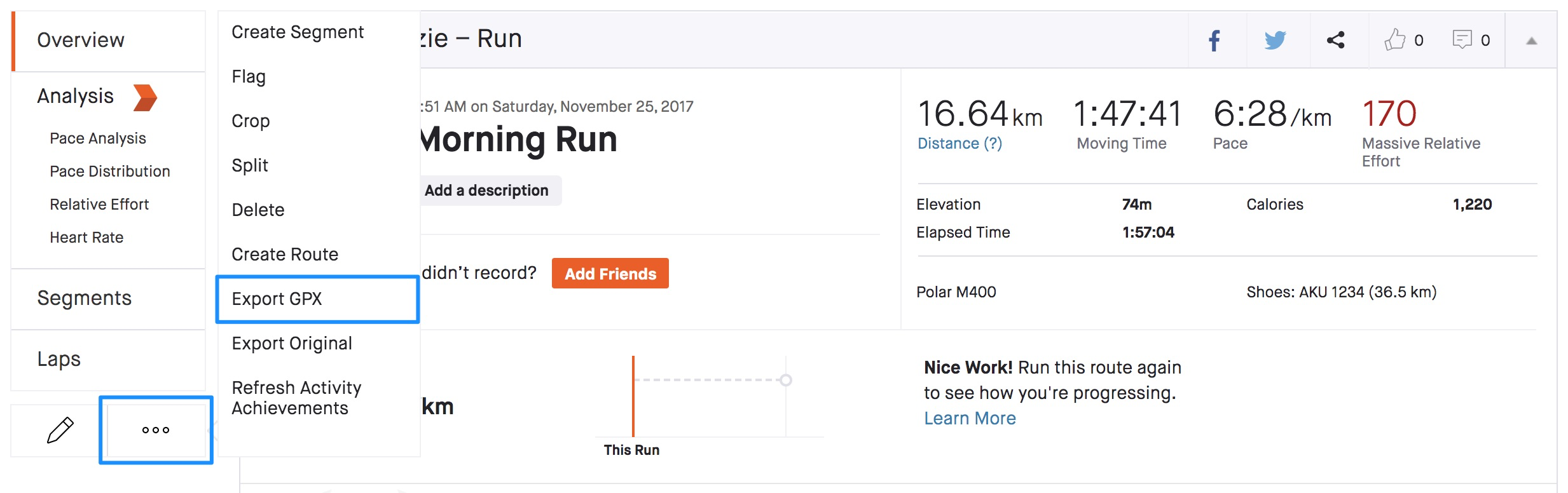
If you only need a particular run, open its activity page on Strava's website, open the three-dot menu, and choose "Export GPX." This downloads that one activity. For your full history, continue with the archive steps below.
Request your Strava archive
On a desktop browser, go to strava.com/account. Scroll down to "Download or Delete Your Account" and click "Get Started". Choose "Request your archive" (not the delete option). Strava will email you within a few minutes to a few hours - usually under an hour.
Download and unzip the archive
The email contains a download link valid for a limited time (typically 7 days). Click the link, download the .zip file to your computer, and unzip it. Inside you will find folders including /activities/ - this is where the GPS files live.
Understand the file formats
Each activity is one file. The format depends on when and how you recorded it:
.gpx- older Strava activities, plain XML.gpx.gz- newer Strava activities, gzipped GPX.fit.gz- activities synced from Garmin/Wahoo devices, gzipped FIT format
HealthFit handles all three formats. If your importer only supports GPX, you may need to decompress the .gz files first and convert .fit files to .gpx using a tool like GPSBabel.
Transfer files to your iPhone
You need the activity files on your iPhone to import them into Apple Health. Easiest paths: AirDrop the entire activities folder to your iPhone, sync via iCloud Drive, or upload to a cloud service (Dropbox, Google Drive) and download on the phone. For large archives (1,000+ activities), iCloud Drive is most reliable.
Import via HealthFit (or your chosen importer)
Open HealthFit. Tap the import button (typically in the lower-right) and grant the app access to your Files. Navigate to where you saved the activities folder, select all the activity files, and confirm the import. HealthFit will process them in batches and write each one to Apple Health with the original date, route, and metadata preserved.
Expect 5-30 minutes depending on how many activities you have. A 5-year Strava archive with ~1,500 activities typically takes 15-20 minutes.
Verify in Apple Health
Open Apple Health on your iPhone. Tap Browse > Activity > Workouts. Scroll to the oldest workout - if everything imported successfully, you should see activities going back to your earliest Strava recording, each with its original date and GPS route data intact.
Avoid duplicates: If you have already enabled Strava's native Apple Health sync (Method 1) and recorded some activities after that, those will be in Apple Health twice if you import the same activities from the archive. The cleanest workflow: import the historical archive first, then enable native sync going forward.
Strava not syncing to Apple Health? Common fixes
If activities aren't showing up in Apple Health after you turned the sync on, it's almost always one of these. Work down the list.
Nothing is syncing at all
Check the permission is actually granted. On your iPhone open Settings > Apps > Health > Strava (on older iOS, Settings > Health > Data Access & Devices > Strava) and make sure Workouts write access is on. Then, inside Strava, confirm Settings > Applications, Services, and Devices > Health shows "Write Fitness Data to Health" enabled. Toggling it off and back on forces a reconnect. Record one short outdoor walk to test - sync lands a few minutes after you save the workout, not instantly.
My Garmin, Wahoo, or Zwift activities aren't syncing
This is the big one, and it is a Strava limitation rather than a bug. Strava's Apple Health integration only writes activities that were recorded in the Strava app itself. Activities that arrived in Strava from a third-party device - Garmin, Wahoo, COROS, Zwift - do not pass through to Apple Health via Strava. The fix: get those into Apple Health from their own app instead (Garmin Connect, for example, has its own Apple Health toggle), or use the archive method above, which includes every activity regardless of source.
Only my new runs show up, not my history
Expected. Strava's Health sync is forward-only and never backfills. Older activities need the archive export in Method 2. This is the single most common surprise, so if history matters to you, do Method 2 first.
The route or map is missing on a synced workout
Usually the same third-party-source issue: route data from activities that came into Strava from another device may not carry across to Apple Health, while activities you recorded directly in Strava keep their GPS route. If the map matters and the route did not transfer, re-import that activity from your GPX archive.
I'm seeing every workout twice
Duplicates appear when two sources write the same activity to Apple Health - Strava's live sync plus a GPX import of the same period, or both Strava and your Apple Watch recording the same run. Pick one source per activity: import your historical archive first, turn on live sync going forward, and avoid double-recording on the watch and phone.
What happens after the data is in Apple Health?
Once your Strava activities live in Apple Health, every iOS app that requests Health read permission can see them. The most immediate uses:
Visualization (the main reason most people do this)
Apps like MoveMap read your entire workout history and render every GPS route on one map. The free tier covers the last 12 months; Pro and Lifetime unlock your full Apple Health history, no year limit. See the full guide.
Stop paying for Strava Premium
If you mostly used Strava Premium for the personal heatmap, MoveMap's Heat mode does the same thing for free (last 12 months) or $19.99 lifetime (full history). How to make a free running heatmap on iPhone.
Switch tracking apps without losing history
You can move to Apple Workout, Wahoo, or any tracker - your historical Strava routes are no longer trapped in Strava. The activities stay in Apple Health permanently. Leaving Strava for good? Here's how to see your runs after quitting Strava.
Future-proof against pricing changes
Strava raised its subscription from $59.99 in 2022 to $79.99 in 2026. If they raise it again, or shut down a feature you rely on, your data is on your phone, accessible to any app.
Frequently asked questions
Does enabling Apple Health sync in Strava export my historical activities?
No. Strava's built-in Apple Health sync only catches new activities recorded after you enable the toggle. Historical Strava activities will not retroactively appear in Apple Health. To move historical activities, you need Method 2 (request your archive and bulk-import via a GPX importer).
Is exporting from Strava free?
Yes. Requesting your data archive from Strava is free for both free and Premium accounts. Strava is legally required to provide this under GDPR, CCPA, and similar data-portability regulations. The archive contains every activity you have recorded plus your profile data.
Which third-party app should I use to import GPX into Apple Health?
HealthFit is the most widely recommended option as of May 2026 - it costs $2.99 one-time on the App Store and imports GPX files with route data, heart rate, and metadata preserved. RunGap is a free alternative but its bulk-import feature is gated behind a paid tier. Health Auto Export is another option but requires more setup. None of them are MoveMap - this is a separate step in your toolchain.
Will imported activities show as Strava-sourced or as duplicates?
Imported GPX activities appear in Apple Health as standard Workout records, sourced by whichever app you used to import them (e.g. "HealthFit"). They do not show as "from Strava." If you have already turned on Strava's native Apple Health sync and recorded activities, importing those same activities from your archive will create duplicates. Import the historical archive before enabling native sync to avoid this.
How long does the bulk import take?
About 5-30 minutes depending on activity count. A typical 5-year Strava archive with around 1,500 activities takes 15-20 minutes on a recent iPhone. The bottleneck is iOS writing each activity to the Apple Health database, not network or file processing.
What about activities recorded on Garmin or Wahoo that synced to Strava?
Those appear in your Strava archive as .fit.gz files instead of .gpx.gz. HealthFit handles both. The original device data (Garmin or Wahoo) is preserved in the import - your imported activity will show the original recording device, not "Strava."
Does this work for cycling activities, not just running?
Yes. The export and import process is identical for any activity type Strava records: running, cycling, walking, hiking, swimming with GPS, etc. Indoor activities (treadmill, indoor cycling on a trainer) export but typically have no GPS data, so they appear in Apple Health as workouts without a map.
Can I export only some activities, not all?
Strava's archive request gives you everything. You can selectively import - HealthFit lets you pick which files to import rather than processing the whole folder.